跳过主要内容
年度计费

Nemotron 年度计划总价约比连续月付 低 50%

省

Nemotron

Create images and videos from prompts or references. Choose a model, review the credit cost, and bring your next idea to life.

文字转视频
0/50000
Restoring saved inputs…

示例

1 / 45
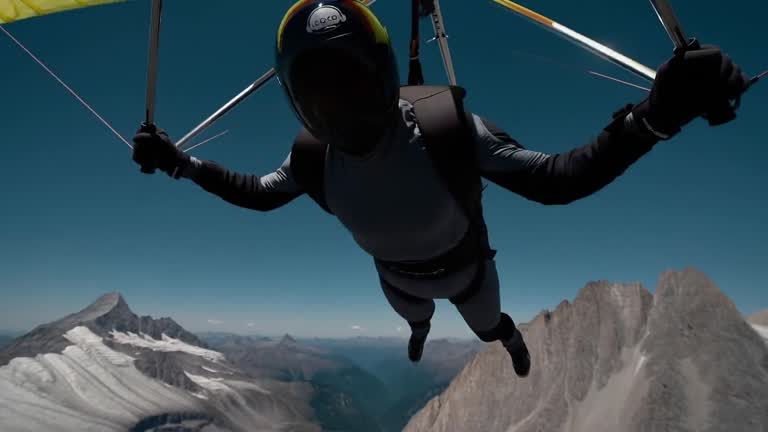
山间滑翔

Nemotron

Capable tools for artists.

Nemotron brings visual control to your creative work. Compose images, stage scenes, edit video and shape your next idea.

Open source foundation ↗Web creative studioAI generation and AI editing use credits

NVIDIA NEMOTRON · 开放模型与开发资源

了解 Nemotron,继续在这里创作

NVIDIA Nemotron 是用于构建 AI 智能体的开放模型系列,提供权重、训练数据和开发方法。模型覆盖推理、视觉理解、检索、语音与安全等方向。

开发者可通过 NVIDIA NIM、Hugging Face 和开源推理框架探索与部署模型。本站为独立创作服务;下方资料链接不表示已接入 Nemotron 推理,图片和视频生成仍使用工作区列出的模型。

资料及图示来源:NVIDIA Developer. NVIDIA 与 Nemotron 商标属于各自权利人,本站不代表 NVIDIA。

01

Nemotron · Introduction

Visual tools for images, scenes, video and references.

Build the scene before you generate it

Nemotron gives artists a visual starting point for their work. A prompt can describe a rainy street, but a composition shows where the character stands, which direction the camera faces, and how much of the street belongs in the frame. Arrange those decisions yourself before asking a model to finish the picture. The result begins with your intent.

The studio brings image editing, scene composition, a video timeline and reference boards into one browser workspace. Open a photograph, combine separate layers, or block a shot with objects and a camera. Save the editable project to your account so that the next revision begins with the same choices. Local editing and project saving use no generation credits.

This studio is built on the authorized upstream creative tools, with this service providing its own accounts, private storage and generation integrations. Images and videos use the supported models listed in the studio. Three-dimensional worlds use World Labs Marble, while available audio and object generation use Fal. Check the displayed credit estimate before you submit; manual arranging and project saves do not submit an AI job.
Explore the open-source project
02

Nemotron · How to use

Prepare references, compose the shot, refine and save.

  1. STEP 1

    Prepare your references

    Open Nemotron and choose an image, video, scene or moodboard workspace. Import your material or begin from a blank project. Decide on a subject, visual direction and output. Sign in when saving or exporting.

  2. STEP 2

    Compose the shot

    Arrange layers in Nemotron for a two-dimensional layout, or place objects and a camera in a three-dimensional scene. Use your references to guide framing, scale and color. Keep individual elements editable while you compare different approaches to the same idea.

  3. STEP 3

    Refine the direction

    Review your Nemotron composition before committing to a final output. Adjust a pose, move the camera, paint a mask or rearrange a clip. Work through the details that a short prompt cannot communicate, and keep the reference close to the result you intend.

  4. STEP 4

    Save or generate

    Save your Nemotron project without submitting an AI job and return to it from the library. When you want AI output, select an available model, review the credit quote and submit the job. Completed results stay attached to your account alongside your saved creative work.

03

Nemotron · Features

Twelve visual workflows from the Nemotron creative studio.

Nemotron 2D Image Compositing

Place photographs, cutouts and painted marks on separate Nemotron layers. Move a subject, resize a backdrop and compare arrangements. A clear layout establishes foreground, background and emphasis before AI refinement.

Open workspace

Nemotron Background Removal

Prepare reusable subjects for Nemotron compositions by separating them from their surroundings. Use cutouts as image layers or scene props. Review fine edges and keep the original reference available.

Open workspace

Nemotron Canvas Image Editing

Use the Nemotron canvas to draw, mask and refine image regions. Visual marks identify the intended change. Inspect the composition before sending a reference to a supported image model.

Open workspace

Nemotron Text to Image

Explore a Nemotron idea with a written description and an available image model. Choose framing and resolution, review the credit estimate, then use the result as a starting image for further composition.

Open workspace

Nemotron Prompted Image Editing

Bring a reference into Nemotron and describe the change. Supported editing models use image inputs to guide new results. Specify the subject, lighting and details to retain, then compare the output with your reference.

Open workspace

Nemotron Image to Video

Turn a prepared Nemotron image into a video reference. Choose a supported model and its available duration, framing and sound controls. Explain the motion you want during the clip.

Open workspace

Nemotron Image to Location

Use Nemotron with World Labs Marble to create an explorable world from a reference. Inspect the environment when planning location views. World creation uses credits; arranging saved projects remains free.

Open workspace

Nemotron 3D Image Compositing

Build depth into a Nemotron scene with image planes, objects and a controlled camera. Position the backdrop and test foreground framing. Save the editable scene to compare another angle.

Open workspace

Nemotron Image to 3D Mesh

Create a three-dimensional object from a reference using an available Nemotron model. Inspect the mesh, then position, rotate and scale it within a scene. Local editing adds no generation cost.

Open workspace

Nemotron Character Posing

Set a character pose in Nemotron to establish body direction, gesture and placement. Combine it with camera framing and scene elements to prepare a deliberate reference before generating an image.

Open workspace

Nemotron Scene Blocking with Kitbashing

Combine three-dimensional pieces in Nemotron to establish a scene. Use simple forms or imported assets to test distances, silhouettes and camera angles, then refine the visual treatment.

Open workspace

Nemotron Character Identity Transfer

Combine a Nemotron posed reference with a character image to guide generation. The scene supplies placement and gesture; the reference supplies appearance. Inspect generated details and revise your inputs as needed.

Open workspace
04

Nemotron · Creator workflows

From a first sketch to a reference that communicates your direction.

01

Illustration and visual development

Start a Nemotron project with a sketch, a cutout or a set of references. Arrange the important shapes and establish the color relationships before refining small details. Save the composition at useful stages so feedback can point to a specific visual choice. Generate a variation when you want to explore a different finish.

02

Shots, scenes and storyboards

Use Nemotron to plan where the camera belongs and how a character relates to the environment. Combine a location, a posed subject and supporting objects to test the shot. Save the scene, compare another angle and build a sequence of references that shares the same visual foundations.

03

Video and reference collections

Bring your Nemotron material together in a timeline or moodboard. Arrange clips, keep useful images close and extract a still when one frame communicates the direction clearly. A private library gives you a place to return to those materials as the project moves from exploration toward a finished sequence.

Creative editing and credit-based AI workflows

Nemotron manual editing

Manual editing and project storage

Compose images, arrange scenes, edit timelines and organize references freely. Sign in to save or export. Local editing and editable project saves use zero generation credits. Your private projects remain available for another session.

Use Nemotron Now

AI generation, editing and training

Model-based credits

AI image, video, audio, object and world generation use credits. Supported masked edits, video background changes and character training also use paid APIs. Review the displayed quote before each submission; saving a result does not remove the preceding AI operation’s credit charge.

Explore plans and credits
05

Nemotron · FAQ

Editing, account access, saved projects, and AI credit charges.

Which Nemotron actions use credits?

AI image, video, audio, object and world generation, AI background edits, masked redraws and character training all use credits. Only manual canvas drawing, scene or timeline arrangement, reference organization and project saving do not submit a paid generation. The workspace shows a quote before each connected AI action.

Why does Nemotron require a login?

Your account connects projects, uploaded references and generated outputs to a private library. Google login and OneTap use the same site account as the other tools. A project save stays associated with its owner so it can be reopened later.

What does Nemotron save?

The studio saves an editable project document for supported image, scene, timeline and moodboard workflows. Projects and generated results are stored in this service’s private storage. Saving records a zero-credit artwork task; a paid generation records its own task and credit settlement.

Which AI models can I use in Nemotron?

Use the models listed in each workspace. Their available controls and credit estimates come from this service’s configured integrations. The upstream demonstration can show models or workflows beyond this catalog; a model is offered here only when its integration is connected.

How is Nemotron related to the upstream project?

This independent service adapts the authorized upstream creative tools and connects them to its own accounts, private storage and generation providers. The source project demonstrates the visual workflows shown on this page. Source links and license notices identify that foundation.

Can I use Nemotron results in another tool?

Download a supported output or reopen the saved project to continue refining it. Keep source material you own or have permission to use, and check the terms of the selected generation provider. A private project does not become a public gallery entry when you save it.

06

Nemotron · Start creating

Make space for your next idea.

Give your next idea a workspace

Start with one image, one camera angle or one useful reference. Nemotron gives you visual tools to arrange those choices and a private place to save the result. Open the studio, build a composition and decide when an AI generation would help move the project forward.

Use Nemotron Now